Change your plan, project licences or seats
Move to another plan or billing cycle, or add or remove project licences and team seats, and see which changes apply now and which wait for renewal.
On a paid plan, you change your plan, billing cycle, project licences and team seats in one place: on the Billing page, click Change plan, pick the new setup, review it and confirm. An upgrade applies right away and you pay only the difference; a downgrade waits for your next renewal. See Which changes apply now and which wait. Only the workspace owner can change the plan.
On Free, see Upgrade to a paid plan instead.
Pick the new setup
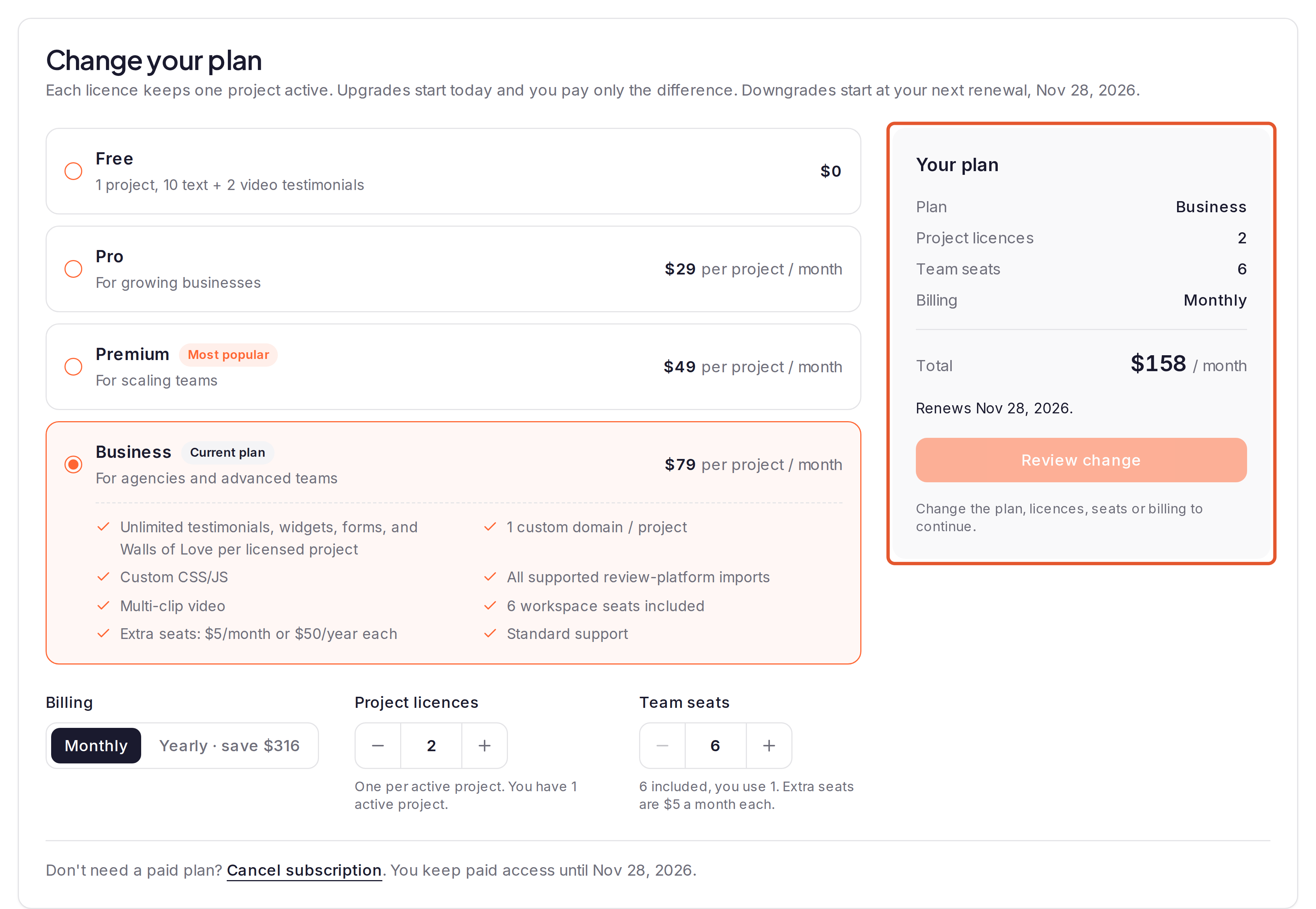
Click your profile picture in the top-right corner and choose Billing. On the Overview tab, click Change plan. Under Change your plan, pick a plan from the list, where yours is tagged Current plan, and set Billing, Project licences and Team seats.
The summary beside the list is headed Your change once you've changed something. It shows each value you changed as old and new, the New total next to what you pay now, and whether the change starts today or at your renewal. On a narrow screen, the total and Review change stay in a bar at the bottom.
Add a licence on the Overview and Usage tabs opens the same card with Project licences raised by one, and the link that starts Switch to yearly on Overview opens it with Yearly chosen. Manage seats on the Team page, Add a seat in the Add Team Member dialog and Add project capacity on the Create Project page open it too.
You can change Team seats on Premium and Business. Picking a higher plan keeps the seats you have. Picking a lower plan sets Team seats to the seats that plan includes, or to the number your team uses if that's more. If you pick fewer seats than your team uses, a line under it says how many seats are occupied: remove teammates or revoke invitations first. See Seats.
Review it
Click Review change. The Review your change dialog shows your plan Now beside the plan you'll have, what's Due today with the credit for the unused part of your current plan and the tax when there is one, your new recurring price, and your next renewal date or the date the change starts. Reviewing changes nothing: click Go back to close the dialog.
For a lower plan, the dialog lists what's No longer included and what's Reduced, under a heading that starts What changes on and gives the date. For a higher plan, click the line that says what the new plan adds to open that list.
If you keep fewer licences than you have active projects, you pick the projects that stay active: tick them under the heading that starts Choose exactly. The others become read-only on the date the change takes effect. See What happens when you downgrade or cancel.
For a change that applies now, the price in the dialog is held for 15 minutes. If you confirm after that, nothing is charged: the dialog works the price out again, and you check it and confirm.
Confirm it
For a change that applies now, click Confirm and pay; the button shows the amount. For one that waits, click the button that starts Schedule for and ends with the date. If the change is refused, see Why can't I change my plan right now?.
Which changes apply now and which wait
A higher plan, more licences or seats, or a switch from monthly to yearly applies right away: you pay only the difference for the rest of your billing period. Switching to yearly starts a new billing period today, so the dialog says Estimated due today and the button says Confirm estimated payment.
A lower plan, fewer licences or seats, or a switch from yearly to monthly waits for your next renewal, with no charge today. If a change includes any of these, all of it waits.
To move to Free, pick Free in the plan list and click Review cancellation: see Cancel your subscription.
Call off a scheduled change
A change that waits shows on Billing as a Change scheduled for renewal notice above the tabs, with its date and the plan, licences, seats and billing cycle you'll move to. Your current plan continues until then. The workspace owner also gets an email with the date and what changes.
To call off a scheduled change, click Keep current subscription under Change scheduled for renewal. Scheduling another change replaces the one that's waiting.
What happens next
- A change that applies now starts as soon as your payment is confirmed, and the Overview tab shows it. If the payment doesn't complete, your current plan stays active and Billing shows Complete payment to activate your upgrade: see I paid, but my plan hasn't changed. What now?.
- More licences don't reactivate a read-only project by themselves: click Reactivate in its row on the Usage tab. See Reactivate the project. A spare licence also lets you create a project.
- More seats let you invite team members.
- A change that waits changes nothing until its date. Then your new plan's limits apply: see What happens when you downgrade or cancel.
See also Plans and pricing, Plan limits, Cancel your subscription and Billing questions.
Was this page helpful?
Upgrade to a paid plan
Move your workspace from Free to a paid plan on the Billing page, with the billing cycle, project licences and team seats you choose.
Cancel your subscription
Cancel a paid plan from the Billing page, keep it until the end of the period you've paid for, and resume it if you change your mind.