Invite email merge tags
Every tag you can put in a Smart Invites email, what it becomes for each customer, and what the email shows when a value is missing.
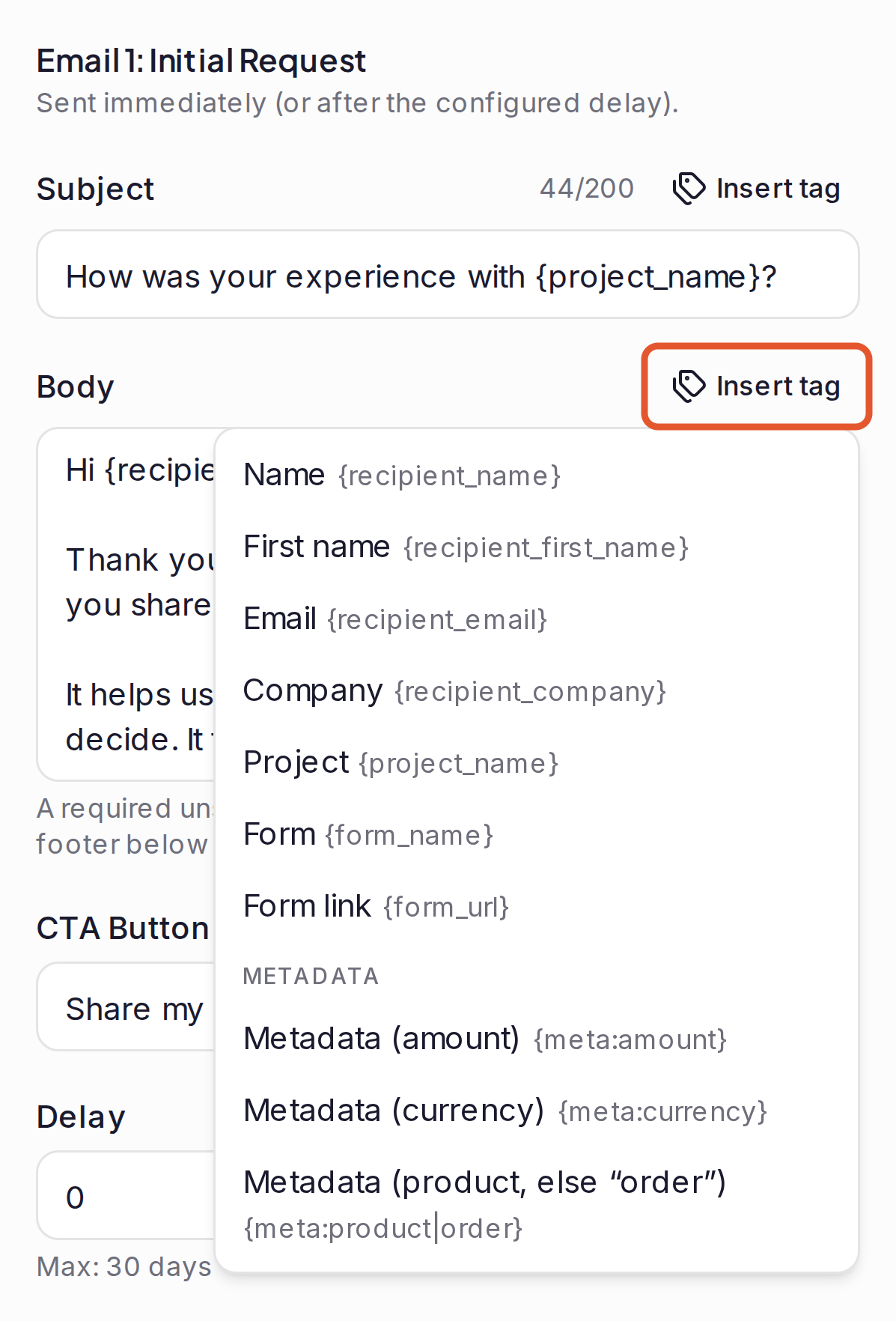
A merge tag is a placeholder in a Smart Invites email, such as {recipient_first_name}. When the email goes out, each tag becomes that customer's details. To add one, open a template and click Insert tag above the subject or the body: the tag lands where your cursor is. You can also type a tag yourself.
To write the emails the tags go in, see Customize your invite emails. To see your tags filled in with a sample customer's details, see Preview and send a test invite email.
These tags work in Smart Invites emails only. The emails a project sends after a form submission have their own, such as {first_name}: see Merge tags in "Set up the emails a project sends".
Every tag
| Menu item | Tag | Becomes | When the value is missing |
|---|---|---|---|
| Name | {recipient_name} | the customer's name | left blank |
| First name | {recipient_first_name} | their first name | "there" |
{recipient_email} | their email address | always filled | |
| Company | {recipient_company} | their company | left blank |
| Project | {project_name} | your project's name | always filled |
| Form | {form_name} | the name of the form the invite links to | always filled |
| Form link | {form_url} | that form's link, written out in the text | always filled |
| Metadata (amount), Metadata (currency) | {meta:amount}, {meta:currency} | a value from the customer's metadata | left blank, or a fallback you write into the tag |
A tag with nothing to fill it, such as a company you didn't enter, is left blank. Write sentences that still read well without it. The first-name tag is the exception: Hi {recipient_first_name}, reads "Hi there," for a customer without a name. A metadata tag can carry words of its own for that case: see A fallback for a missing value.
Where tags work
- In the subject and the body of all three emails. The first email and the reminders take the same tags.
- Not on the button. CTA Button Label is sent exactly as you typed it, so a tag there isn't filled in.
- Capital letters don't matter in a tag's own name:
{Recipient_Name}works too. A metadata name, the part aftermeta:(up to a|, if the tag has one), must match exactly.
The first-name tag
{recipient_first_name} takes the first word of the customer's name: "Maya" for "Maya Chen". Two kinds of name are handled differently:
- A name that starts with a title or an initial, such as "Dr. Chen" or "J. Smith", is used whole, so the greeting reads "Hi Dr. Chen,".
- No name, or an email address in place of a name, gives "there".
Metadata tags
Metadata tags take their value from an extra column in a file you import ({meta:plan} shows the customer's value from a column named plan, spelled exactly as in the file's header row) or from a webhook's Extra fields ({meta:amount} shows the field named amount). Invites you send by hand have no metadata, so these tags stay blank there.
A webhook made from the Shopify, Shopify POS, WooCommerce, Gumroad or Lemon Squeezy tile starts with an extra field named product, the name of the order's first product, so {meta:product} works there from the start.
The Insert tag menu lists three examples under Metadata: Metadata (amount), Metadata (currency) and Metadata (product, else “order”), which adds {meta:product|order}. For any other name, type the tag yourself. To set the values up, see What the CSV file needs and Read more from each event.
A fallback for a missing value
A metadata tag can say what to show when the customer has no such value: write it after a |. {meta:product|order} shows the customer's product, or "order" when there's none. So How's your {meta:product|order}? reads "How's your Linen Apron?" for one customer and "How's your order?" for a customer whose order had no product name, never "How's your ?". A value of only spaces counts as missing.
- The name ends at the first
|. Everything after it, up to the}, is the fallback, shown as you wrote it. Spaces next to the|don't count, so{meta:product | your order}works too. The fallback can't contain}. - An empty fallback, as in
{meta:product|}, shows nothing, as{meta:product}does. - A tag with no name before the
|, such as{meta:|order}, gets an Unknown merge tag warning and is removed. - A name with a
|in it can't be used in a tag. A webhook's extra field names can't contain one. A column of a file you import can: rename it before you import, or its values can't be shown. - In the preview and a test email, the sample customer has no
product, so a tag such as{meta:product|order}shows its fallback. See Preview and send a test invite email.
Only metadata tags take a fallback.
Misspelled tags
A misspelled tag gets an Unknown merge tag warning and is removed from the email. The warning names the tag, on that email's tab and under Quality checks on the Settings tab.
Anything else between curly brackets in your email is removed the same way, so don't use them for ordinary text. A customer's own details are shown as they are, curly brackets included: a value such as Order {1001} prints as written, and is never read as a tag.
Was this page helpful?
Customize your invite emails
Edit the subject, text, button and timing of your Smart Invites emails and reminders, and set where your customers' replies go.
Preview and send a test invite email
See each Smart Invites email with sample customer details, on desktop or mobile, and send a test to your own inbox before customers get it.