Win the direct booking with reviews your guests gave you.
Booking.com's contract with your property limits what you may do with its guest reviews. So ask your guests yourself: a QR code at the desk, a link in your own post-stay email. Their stars, words, photos and videos come to you, wait for your approval, and go on the page where people book direct.
Collecting and showing your guests' reviews is free on every plan. Smart Invites, which email your direct guests after they check out, are on Premium and Business.
Guest reviews on Larchwick House's booking page
What our guests tell us
Can I put my Booking.com reviews on my hotel's website?
It's the first thing hotels ask us. Booking.com's answer is in its contract with every property, the General Delivery Terms, and it depends on where your property is.
The short version
Outside the European Economic Area, not without Booking.com's written consent. Inside it, the words of the reviews, and Booking.com's logo or a link only with its approval. Reviews your guests give you directly are yours to show, with their consent.
Check your own agreement with Booking.com. This isn't legal advice.
Outside the European Economic Area, a property may not use its Booking.com guest reviews without Booking.com's written consent.
“The Accommodation is not entitled to directly or indirectly use the Guest reviews in any way without the prior written consent of Booking.com.”
Inside the EEA, a property may show the words of its guest reviews on its own website.
“you may use the text of guest reviews for any purpose, including internal analysis and commercial uses such as displaying reviews on your own website”
Partner Hub, "Guest reviews use and legal terms, European Economic Area", read on 29 October 2026
With Booking.com's logo or a link to Booking.com, it needs Booking.com's approval first, and must then show a fair selection, not only the good ones.
“Display a representative selection of reviews rather than only positive ones.”
Partner Hub, "Guest reviews use and legal terms, European Economic Area", read on 29 October 2026
Guest contact details that come from Booking.com aren't for asking for anything else.
“shall not use the Messaging Service and/or Guest contact details provided by Booking.com to the Accommodation to send unsolicited electronic communications”
General Delivery Terms, clause 2.9.3, read on 29 October 2026
Reviews on Booking.com, and reviews your guests give you.
Your Booking.com score still matters: travellers look you up there. Reviews your guests give you directly do a different job, on the page where they decide to book with you.
| What | Reviews on Booking.com | Reviews your guests give you |
|---|---|---|
| On your website | Outside the EEA, only with Booking.com's written consent. Inside it, the words, and Booking.com's approval for its logo or a link | Anywhere you like: on a Wall of Love page, or in 31 widget styles, all 64 from Pro on your booking page |
| Stars | Booking.com's score out of 10. Shown with its logo, never turned into stars | The stars your guest gave |
| Video and photos | Written reviews | A short video, and up to 3 photos of their stay |
| Stars in Google | Google doesn't allow marking up reviews taken from other sites | Eligible for review markup on Business. Google decides when to show stars |
| If you leave Booking.com | Reviews you show with Booking.com's logo come off your website | They stay where they are |
Ask while the stay is still fresh.
The best moment is the last morning: the bags are packed and the breakfast was good. A minute on their phone, and the next guest reads it on your booking page.
Ask before they leave
Your review form has a link and a QR code. Print the code for the desk, the room or the bill, and put the link in your own post-stay email to guests who gave you their address.
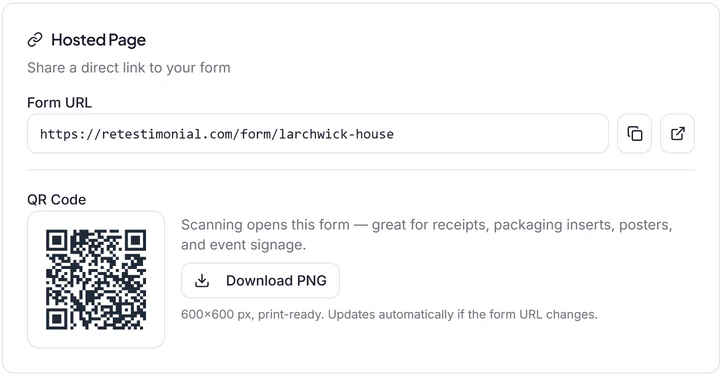
The review form's link and QR code, in its share settings. They answer in a minute
Stars, a few words in their own language, up to 3 photos of their stay, or a short video. The form can end with a consent step they tick before sending.
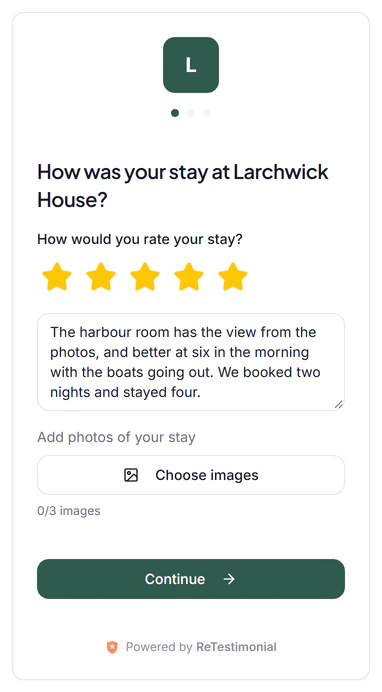
The review form as a guest opens it on a phone. You decide what goes live
Every review waits in Pending until you approve it. A four-star review with an honest note about street noise is still worth showing: it reads as real.
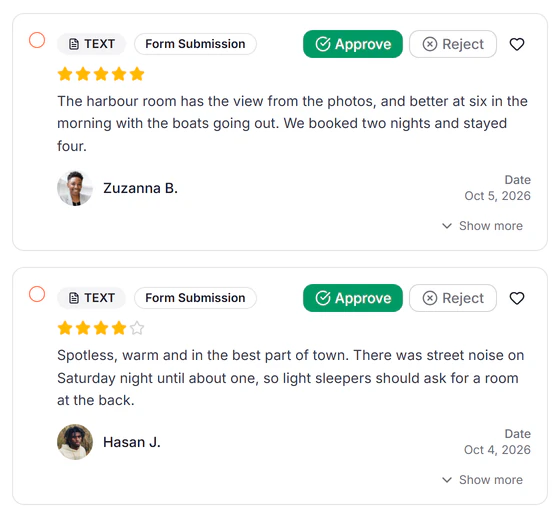
Two guests' reviews in Pending, with Approve and Reject. 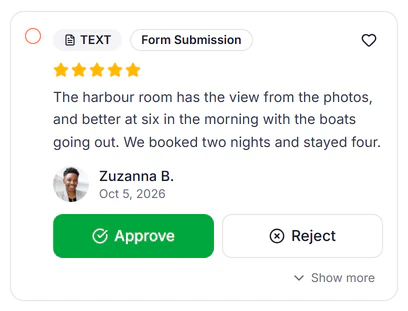
Two guests' reviews in Pending, with Approve and Reject. It's on your booking page
An Auto-sync widget shows each review you approve, in the style you chose. Its embed code goes on Webflow, WordPress, Framer, Squarespace, Wix, Shopify or any HTML page.
A live widget with one of Larchwick House's made-up reviews.
Ask every direct guest after checkout, without lifting a finger.
Premium and Business
Smart Invites emails your form to each guest who booked with you, after they leave: from a list of departures you upload, or a webhook your booking system sends.
- At most three emails
- The ask and two reminders, each with a one-click unsubscribe. Nothing more.
- Never twice in 90 days
- A regular guest isn't asked again after every stay.
Not the addresses Booking.com gives you
Booking.com's terms say a property shall not use the guest contact details it provides to send unsolicited electronic messages. Ask those guests in person, with the QR code.
Pick a look. It's the real widget.
Each style below is drawn by the same code that runs on your site, with Larchwick House's guests' reviews. Choose from 64 styles and match your colours.
Masonry Grid
These colours are free on every plan. Any other colour, and removing the ReTestimonial badge, come with Pro. See every widget style
One guest's words, many places.
A review a guest gave you can work beyond your booking page.
- An image for social
- Turn it into a ready-to-post image in the sizes social networks use. On every plan.
- A short video
- Set the words and stars in motion for a post or a story. On every plan, with the vertical size from Pro.
- Stars in Google Business
- A widget can add review markup for the reviews your guests gave you, so the page is eligible for review stars. Google decides when to show them.


Start collecting free. Ask automatically on Premium.
Every plan
Free to start
- A review form with your questions, a star rating and a consent step
- A link and a QR code for it, for the desk, the room or the bill
- Written and video answers: 10 written and 2 video testimonials on Free
- Show them on a Wall of Love page and in 31 widget styles, all 64 from Pro
Smart Invites
$49 a month per active project, on Premium and Business
- An email after checkout to each direct guest, from a list you upload or a webhook your booking system sends
- Three emails at most: the ask and two reminders, each with a one-click unsubscribe
- Never the same guest twice within 90 days
- 500 guests a month on Premium, 1,000 guests a month on Business, per project
- Every video testimonial you collect
$49 is Premium's price, paid monthly. Review markup for Google's stars is on Business. Limits are per project. Compare every plan
Questions
Can I put my Booking.com reviews on my hotel's website?
Booking.com's contract with properties, its General Delivery Terms, says guest reviews are for Booking.com's exclusive use: outside the European Economic Area a property may not use them without Booking.com's written consent. Inside the EEA, a property may show the words on its own website; using them with Booking.com's logo or a link needs Booking.com's approval, and a representative selection, not only the positive ones. Check your own agreement with Booking.com; this isn't legal advice.
Can I email guests who booked through Booking.com and ask for a review?
Not with the contact details Booking.com gave you: its terms say a property shall not use them to send unsolicited electronic messages. Ask in person instead, with your form's QR code at the desk or in the room, or ask guests who gave you their own email address.
How do guests send me a review?
Through your review form: a link in your own post-stay email, or its QR code at the desk, in the room or on the bill. On Premium and Business, Smart Invites email your direct guests after checkout, from a list you upload or a webhook your booking system sends, with three emails at most and never the same guest twice within 90 days.
Can guests answer on video or add photos?
Yes. A question can take a written answer, a video, or either, and can let a guest add up to 3 photos. Free keeps 2 video testimonials, Pro 10 per project, and Premium and Business every one you collect.
Do new reviews go straight onto my site?
No. A new review waits in your Pending inbox until you approve it, so you read each one before a guest does.
Will my guests' reviews show stars in Google?
On Business, a widget can add review markup for the reviews your guests gave you directly, which makes the page eligible for review stars. Google decides whether to show them. Reviews from review sites are never included.
Do I need my guests' permission?
Ask for it. A form can end with a consent step the guest ticks before sending, and you can make it required.
Is ReTestimonial affiliated with Booking.com?
No. ReTestimonial is not affiliated with or endorsed by Booking.com.
Put your guests' own words beside Book now.
Collecting and showing your guests' reviews is free on every plan. Smart Invites, which email your direct guests after they check out, are on Premium and Business.
Booking.com is a trademark of Booking.com B.V. ReTestimonial is not affiliated with or endorsed by Booking.com.