Your Capterra reviews, on your own pricing page.
Import the reviews buyers read on Capterra, in Capterra's own order, and show the praise beside your plans with the Capterra mark. Each quote is the reviewer's pros, with their stars, name and job title. Their cons stay with your team, and nothing goes live until you approve it.
Automatic import is on Business. Saving reviews one at a time with the Chrome extension is free on every plan.
A Capterra widget on Crewlane's pricing page
 What field service teams say on Capterra
Each part of a Capterra review, in the right place.
Capterra asks every reviewer for more than a star rating: a title, four sub-ratings, their pros, their cons, their overall comments, and who they are. The import keeps all of it. Your site shows the praise, and your team sees the rest.
The review on Capterra
Your siteYour team
- Title
- Our dispatch board finally matches what's happening in the field
- Your site, with titles on
- Overall rating
- Your site
- Pros
- When a job runs long, the tech marks it on their phone and every visit after it moves on the board by itself. I used to spend my mornings calling customers to reschedule. Now they get a text with the new arrival window, and I only hear about it if something goes wrong.
- The quote on your site
- Reviewer
- Dolores R. · Office Manager
- Your site
- Cons
- Recurring maintenance contracts take a few too many clicks to set up the first time.
- Your team
- Overall
- It replaced a whiteboard, two spreadsheets and a lot of phone calls. The crews picked it up in a week.Becomes the quote when a review has no pros.
- Your team
- Sub-ratings
- Ease of use5.0Customer support5.0Functionality5.0Value for money4.0Likely to recommend10/10
- Your team
- Industry, size and labels
- Facilities Services · 11-50 employeesIncentivized
- Your team
On your site
In your dashboard
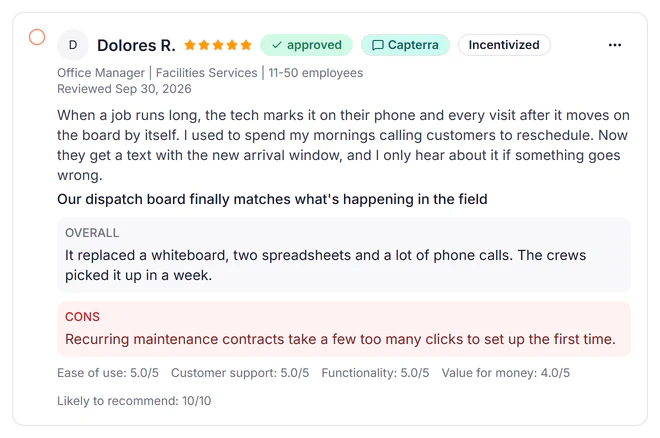
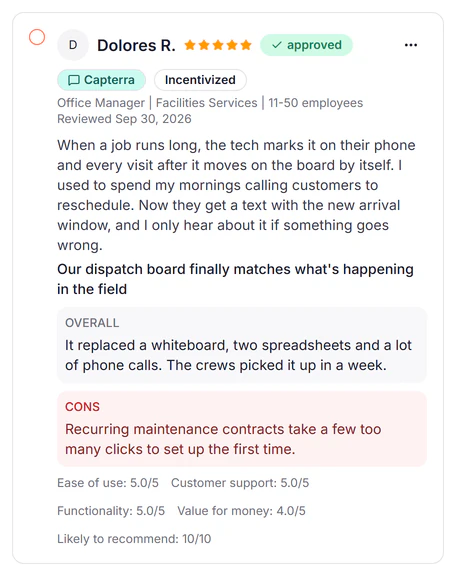
- Each review keeps its link to Capterra. Switch on review links and a buyer can read the whole review there.
- A reviewer who keeps their name private on Capterra comes in as Anonymous, still with their job title. A photo comes in when Capterra shows one.
- Capterra's Incentivized label shows on the review in your dashboard, so you choose what to publish.
Start with the reviews buyers read first.
Paste your product's Capterra address, then choose how many reviews to bring in, in which order, and from how many stars up. No Capterra account and no token. Business
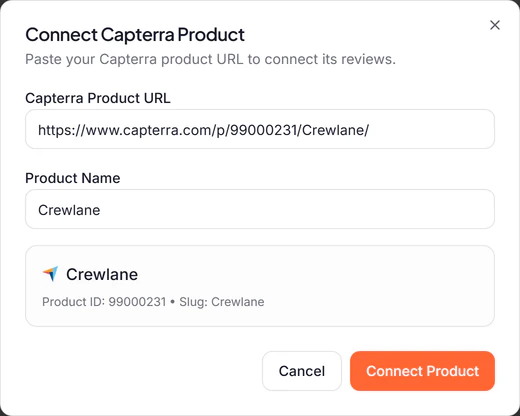
Connect a product
- On Capterra, open your product's page and copy its address.
- Paste it and give the product the name your team uses.
- Connect. Nothing is imported until you choose to.
Connect up to five products to a project: your main product, a second app, or a client's listing.
Choose the order and the floor
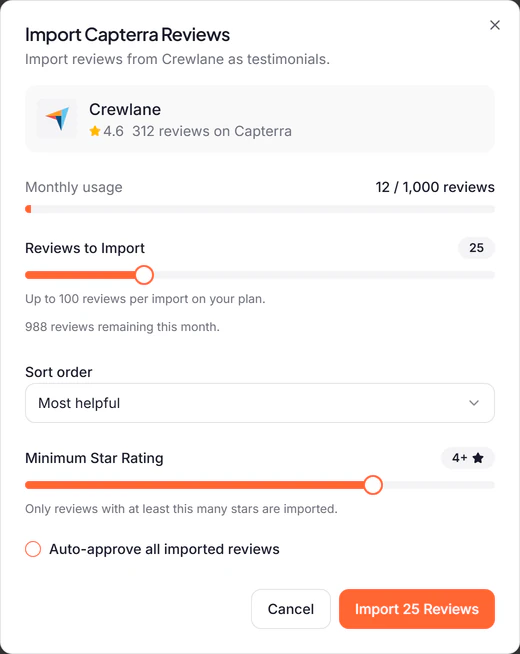
Bring in up to 100 reviews at a time. Most helpful is the order Capterra shows your reviews in, so the reviews buyers read there come in first. Pick the newest, the highest or the lowest rated instead, and set a minimum star rating to leave out anything below it.
Reviews wait in Pending until you approve them, unless you approve them as they arrive. A project can import 1,000 reviews a month.
New reviews arrive every month, without anyone checking.
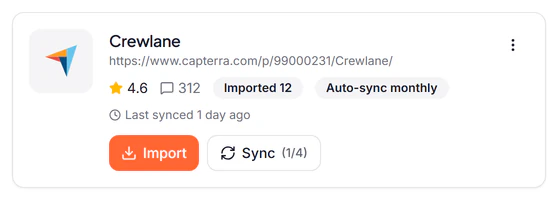
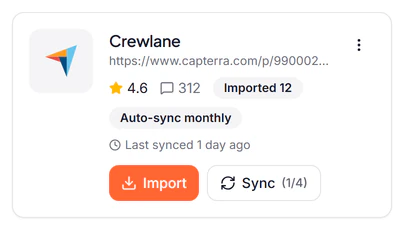
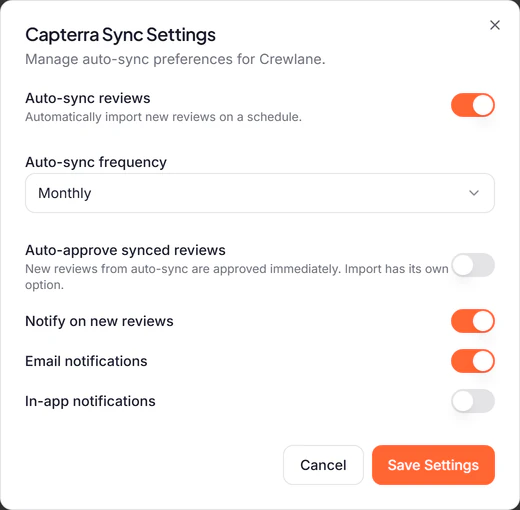
Switch on auto-sync and each connected product is checked every month for reviews written since the last one you imported. When a launch or a campaign brings a wave of new reviews, press Sync.
- Where they land
- In Pending, or straight in Approved if you switch on auto-approve for synced reviews.
- Who hears about it
- The workspace owner gets an email when new reviews arrive. In-app notifications are one switch away.
- Every rating comes in
- A sync brings new reviews at every star rating. Approve them yourself, or set your widget to show 4 stars and up.
- Sync now
- Check for new reviews whenever you need, up to four times a month per project.
- Never twice
- A review comes in once, even if you disconnect the product and connect it again.
- Your own tools
- A webhook can send each new review to an address you choose once it's imported, with the endpoint's review sync events turned on.
Not on Business? Save reviews one at a time.
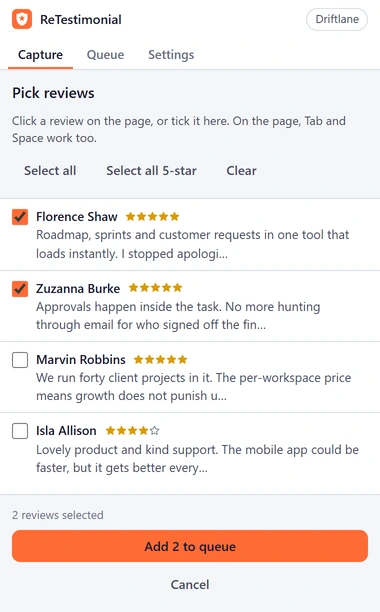
The ReTestimonial Chrome extension reads the reviews on the Capterra page you're looking at. Tick the ones you want and they go to your Pending inbox with the reviewer's name, rating and date, and a link back to the review. It's free on every plan.
- Install ReTestimonial: Capture Testimonials from the Chrome Web Store.
- Open your reviews on Capterra and open the extension's side panel.
- Tick the reviews you want, check them, and save them to a project.
No extension? Add a review by hand, or paste a screenshot of it and let ReTestimonial fill in the form.
Pick a look. It's the real widget.
Each style below is drawn by the same code that runs on your site, with Crewlane's approved Capterra reviews. Choose from 64 styles and match your colours.
Masonry Grid
These colours are free on every plan. Any other colour, and removing the ReTestimonial badge, come with Pro. A widget goes on Webflow, WordPress, Framer, Squarespace, Wix, Shopify or any HTML page. See every widget style
Capterra is one place buyers check.
Your Capterra reviews share one inbox with reviews from  G2,
 Google,
 Product Hunt,
 App Store and one more site, answers to your own forms, video testimonials, and posts from
 X,
 LinkedIn,
 Instagram and
 TikTok. One widget can show them together, and with Proof Match a visitor who arrives from Capterra can see your Capterra reviews first. Premium and up
Start on any plan. Import automatically on Business.
Every plan
Free to start
- Save Capterra reviews one at a time with the Chrome extension
- Add a review by hand, or from a screenshot of it
- Show them on a Wall of Love page and in 31 widget styles, all 64 from Pro
- Room for 10 testimonials on Free, and more on paid plans
Business
$79 a month per active project
- Five Capterra products per project
- Up to 100 reviews per import, 1,000 a month per project
- Most helpful first, as Capterra shows them, or the newest, highest or lowest rated
- A minimum star rating on import
- Auto-sync every month, plus Sync four times a month per project
- Job titles, a photo when Capterra shows one, and a link to each review
Monthly prices. Limits are per project, and paid plans are priced per active project. Compare every plan
Questions
What do I need from Capterra?
Only your product's address on Capterra, such as capterra.com/p/123456/Your-Product. There is no account to connect and nothing to install on Capterra's side.
Which part of a Capterra review shows on my site?
Capterra asks every reviewer for their pros, their cons and their overall comments. The testimonial is the reviewer's pros, with the stars, their name and job title, and the review's title when your widget shows titles. The cons, the overall comments and the sub-ratings stay in your dashboard, beside the review. A review without pros uses the overall comments instead.
Which reviews come in first?
You choose the order: Most recent, Most helpful, Highest rating or Lowest rating. Most helpful is the order Capterra itself shows your reviews in. You can also set a minimum star rating, so an import of 4 stars and up brings nothing below that.
Do reviews show up on my site straight away?
No. Imported reviews wait in Pending until you approve them, unless you switch on auto-approve when you import, or for synced reviews in the product's sync settings.
How do new reviews get in?
Switch on auto-sync and each connected product is checked every month, or press Sync up to four times a month per project. A sync brings the reviews written since the last one it imported, at every rating, and a review is never imported twice, even if you disconnect and reconnect the product.
Why do some reviewers show as Anonymous?
Capterra lets reviewers keep their name private, and those reviews come in as Anonymous, still with their job title. A reviewer's photo comes in when Capterra shows one. You can edit a testimonial's name, photo or company yourself.
What does the Incentivized label mean?
Capterra marks a review as incentivized when the reviewer was offered a small thank-you, such as a nominal gift, for writing an honest review. The label shows on the review in your dashboard, so you can decide which reviews to publish and how.
Is it on my plan?
The automatic import, with sync and auto-sync, is on Business. On every plan you can save Capterra reviews one at a time with the Chrome extension, or add one by hand or from a screenshot.
What if a review is edited or deleted on Capterra?
Your imported copy stays as it was: ReTestimonial doesn't follow later changes on Capterra. You can edit, archive or delete the copy yourself.
Can I import a product I don't own on Capterra?
The import reads any product's public Capterra page, so an agency can import a client's reviews. Only publish reviews you have the right to use.
Put the reviews you earned on Capterra to work.
Automatic import is on Business. Saving reviews one at a time with the Chrome extension is free on every plan.
Capterra is a trademark of Gartner, Inc. and its affiliates. ReTestimonial is not affiliated with or endorsed by Capterra.