Google reviews for Shopify
Free Google reviews widget for Shopify
Pick a style, find your business, then click Add to my website for free. You get one snippet to paste into a Custom Liquid section. No credit card.
These are an example business's reviews. Search yours to see your own.
Works on any website
Paste one snippet into your website builder or any HTML page. Pick yours for its steps.






How it works
Step 1
Pick a style
Carousels, grids, sliders, lists and badges. Then switch between light and dark and set your brand colour to suit your Shopify store.
Step 2
Find your business
Type your business name and city. Your newest Google reviews fill the widget within seconds.
Step 3
Paste it into Shopify
Click Add to my website for free and create a free account. Your reviews are imported for you, and you get one snippet for a Custom Liquid section.
Add the widget to Shopify
It takes one Custom Liquid section, added in your theme editor.
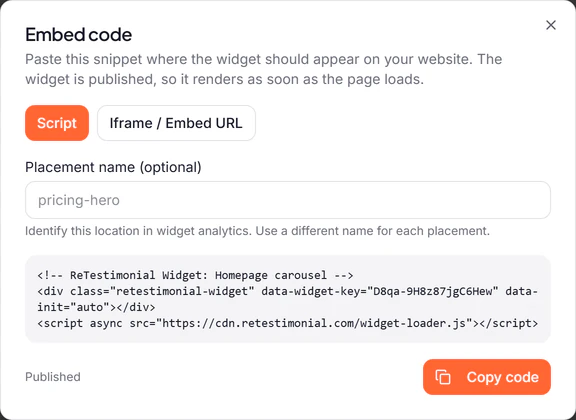
Copy your widget's code
When you sign up, your widget opens with its code ready. Click Publish and copy code. You can copy it again later from Get code in the widget builder.
Open the theme editor
In your Shopify admin, go to Online Store > Themes and click Edit theme. For a page other than your home page, pick its template from the menu at the top, such as Products > Default product.
Add a Custom Liquid section
In the sidebar, click Add section, search for "Custom Liquid" and select it. Drag the section to the spot where the reviews belong.
Paste the code and save
Click the section, paste your code into its code box, all of it, and click Save. On your live theme, Shopify may ask you to click Publish.
Good to know on Shopify
Fonts follow your theme
Your theme's CSS can't restyle the widget. Only its text follows your theme's font, until you choose a font in the builder.
Every page from the footer
A Custom Liquid section added to the footer area shows on every page of your store.
No Custom Liquid section?
Not every theme offers one. Check your theme's documentation, or ask its developer, for a way to add custom HTML.
Something not showing? Read the full Shopify guide, with what to check when the widget stays empty.
Questions
- Do I need a Shopify app?
- No. The widget goes into a Custom Liquid section in your theme editor, so there's no app to install and nothing extra in your admin.
- Can I show the reviews on my product pages?
- Yes. Add the section to the Default product template and the reviews show on every product page. For some products only, create a new product template, add the section there and assign the template to those products.
- Is the Google reviews widget free?
- Yes. The free plan imports up to 25 Google reviews at a time from 1 location, and shows them with a small ReTestimonial badge. Paid plans import more and remove the badge.
- Do I have to connect my Google account?
- No. You search for your business by name and the widget shows its public reviews. There is nothing to authorise and no Google login.
- Will the widget clash with my Shopify design?
- Your store's CSS rules can't reach inside the widget, and its styles never touch your page. You choose its layout, theme and colour in ReTestimonial to suit your store.
- Can I choose which reviews appear?
- Yes. After you sign up, every imported review sits in your inbox. You decide which ones the widget shows and in what order.
- Do new reviews show up on their own?
- On the free plan you bring in new reviews with one click. From Pro, reviews sync automatically every month for up to 3 locations.
Prefer another look? Browse every widget style.
After you sign up: How Google review import and sync work.
Not on Shopify? The same widget works on any website: Google reviews widget.
Webflow, WordPress, Framer, Squarespace, Wix, and Shopify are trademarks of their owners. ReTestimonial is not affiliated with or endorsed by them.